Software Set-Up
OpenDCS Overview
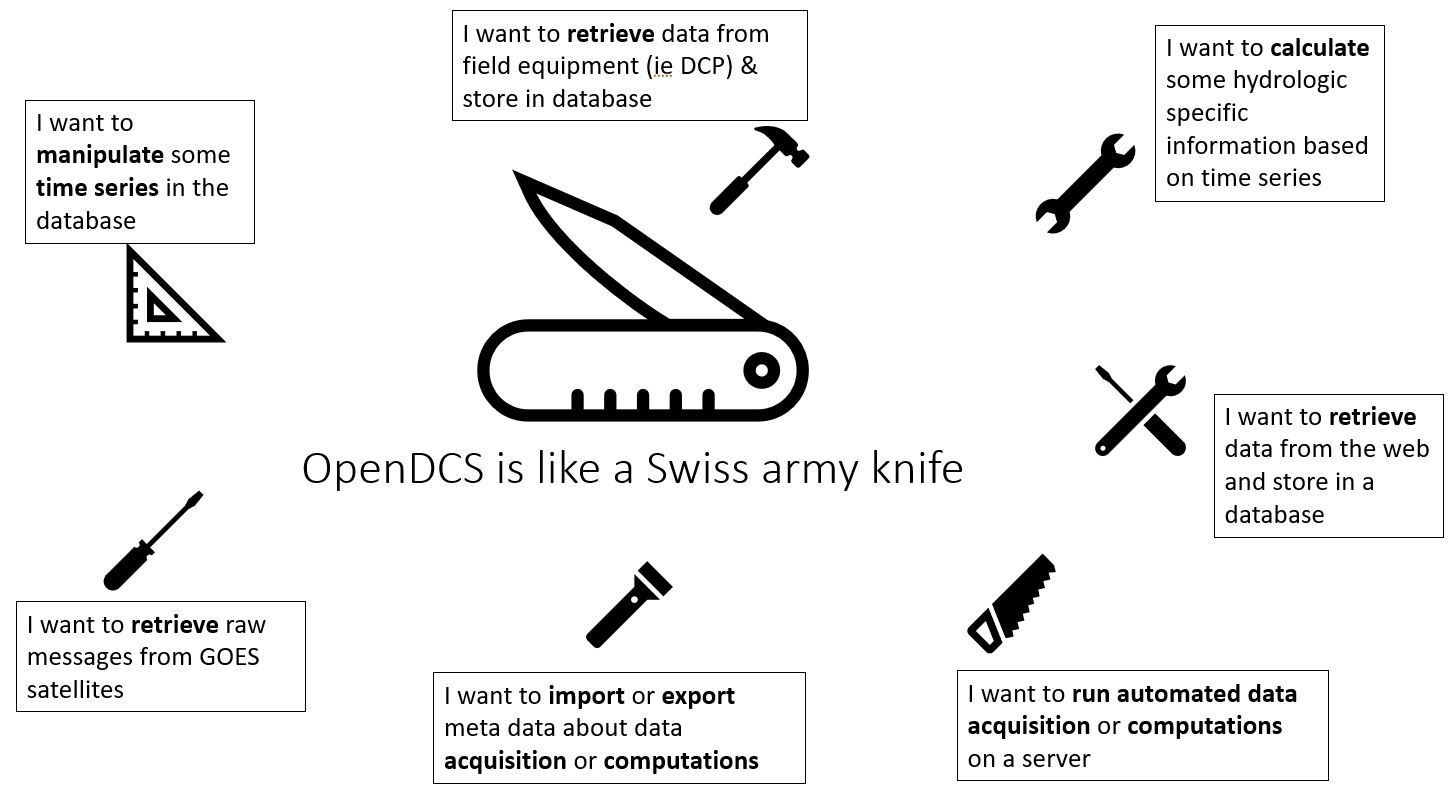
OpenDCS is a software built for the following purposes:
Retrieving data from NOAA GOES Satellite system
Processing data from NOAA GOES Satellite system to a more useful
Retrieving data from arbitrary systems
Processing of near real-time time series data
OpenDCS is currently used by:
U.S. Army Corps of Engineers
U.S. Bureau of Reclamation
U.S. National Oceanic and Atmospheric Administration
And Others
OpenDCS current and past contributors include:
U.S. Army Corps of Engineers
U.S. Bureau of Reclamation
U.S. Geological Survey
ILEX Engineering Incorporated
Sutron Corporation
Cove Software, LLC
Precision Water Resources Engineering
Xcellious Consulting
Resource Management Associates
What is OpenDCS?
OpenDCS is a software for retrieving and processing data from NOAA GOES Satellite system. OpenDCS is also used for retrieving data from arbitrary systems (ie ), and processing of time series data. The software is built to be compatible with the U.S. Army Corps of Engineers Corps Water Management System (CWMS) and with the U.S. Bureau of Reclamation Hydrologic Database (HDB).
OpenDCS includes a subset of tools for users, including the following applications:
DECODES
LRGS
Computation Processor
Screening
Once set-up, users can experience automated data and retrieval and processing from LRGS satellite data. Automatically triggered calculations can be set-up if data is being stored in CWMS or HDB systems.
In OpenDCS terms, this means that a user will have the tools to do the following (and more):
Create routing specs
Create algorithms and computations
Create and manage time series in database
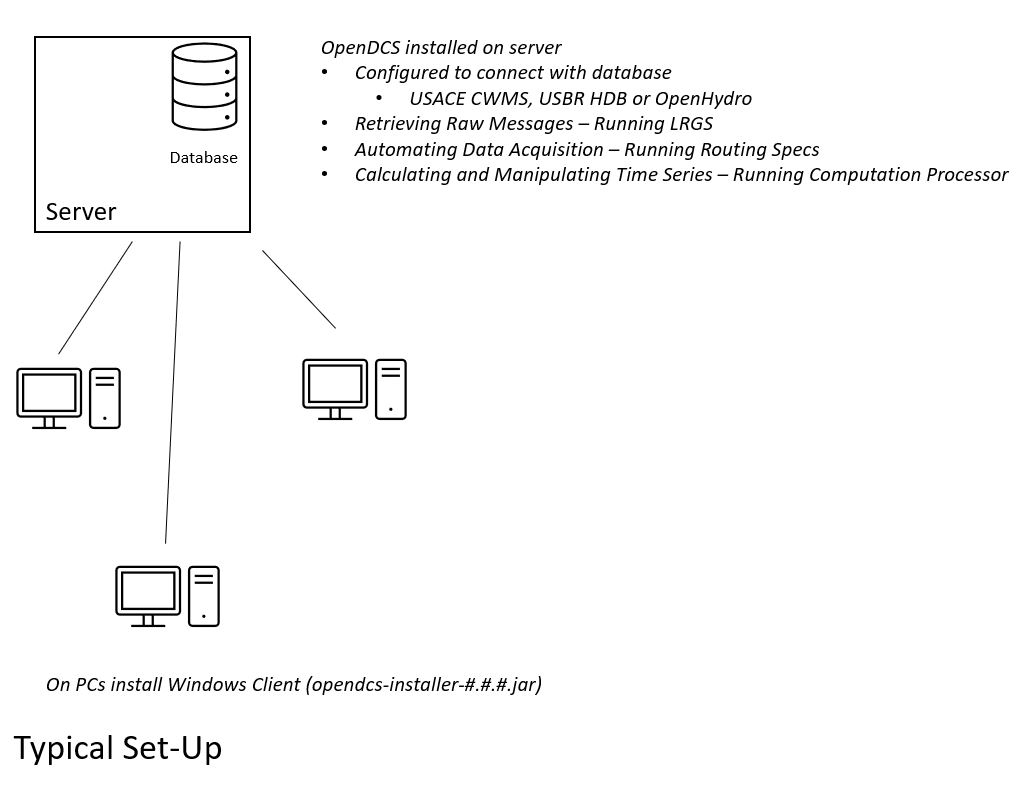
OpenDCS is designed to operate with a database. A fast majority of the documentation here assumes that a database is already set up an running. Below is a high level schematic to conveys how a OpenDCS is typically set-up. The set-up and install directions below focus on a Windows PC set-up. Further documatation about server set-up and how to set up with OpenTSDB database can be found in the legacy documentation Additional Content on Installation
Where can I find more information?
Information about OpenDCS can be found on the github repository.
Where can I find this information in PDF format?
Previous versions of OpenDCS (before 7.0.0), included a doc folder in the install directory (ie C:\OPENDCS\doc), with PDFs, which were previously developer or advanced-user focused. Versions 7.0.0 and after include html code in the OPENDCS\doc folder. The content of the older PDFs is now contained in the html files.
What is the history of OpenDCS?
1999 - Java-based LRGS developed for USGS
2001 - Java-based DECODES developed for USGS and USACE (Database schem for XML and SQL)
2004 - DCP Monitor Tomcat Web App funded by USACE MVR (Also DECODES in-line Rating Computations)
2005 - Computation Processor Design funded by US Bureu of Reclamation and USGS
2007 - Computation Processor implemented for USBR Hydrologic Database (HBD)
2007 - Support LRIT (not HRIT) added to LRGS
2008 - Iridium support added to LRGS
2008 - CP ported to USACE CWMS
2012 - “OpenDCS” released with several improvement to GUI design
2014 - OpenTSBD (Time Series Database) - implemented in PostgreSQL
2015 and later - Improvements to all modules
How do I install OpenDCS?
Installing OpenDCS requires a few steps outlined below. The content below is catered towards users who wish to install OpenDCS on personal workstations.
Download the software package (opendcs-installer-#.#.#.jar).
Unzip the contents.
Configure OpenDCS.
What do I need installed before getting started with OpenDCS?
Prior to installing OpenDCS, java 1.8 or a later version must be installed.
For windows users, check if java is installed and check if java is in the user environment path (or system environment path).
Run the following commands in a command prompt.
> where java
C:\Program Files (x86)\Common Files\Oracle\Java\javapath\java.exe
In the code block above java is installed in the path returned. The location may be different on your PC - this is OK. If nothing is returned (or a message like “”INFO: Could not find files for the given pattern(s).), check if java is installed somewhere on your PC. If it is installed, and if it is at least version 1.8, then add the location to the system or user environment path.
If a path is returned, run the following command to see what version is installed.
> java -version
java version "1.8.0_391"
If a java version (at least 1.8.##) is returned, then java is installed. Proceed with installing OpenDCS.
If nothing is returned or the version is older then 1.8, then install the 1.8 or up to java 17 from https://adoptium.net/temurin/releases/ .
Other JREs should work but are not as tested by the project.
Where can I find releases of OpenDCS?
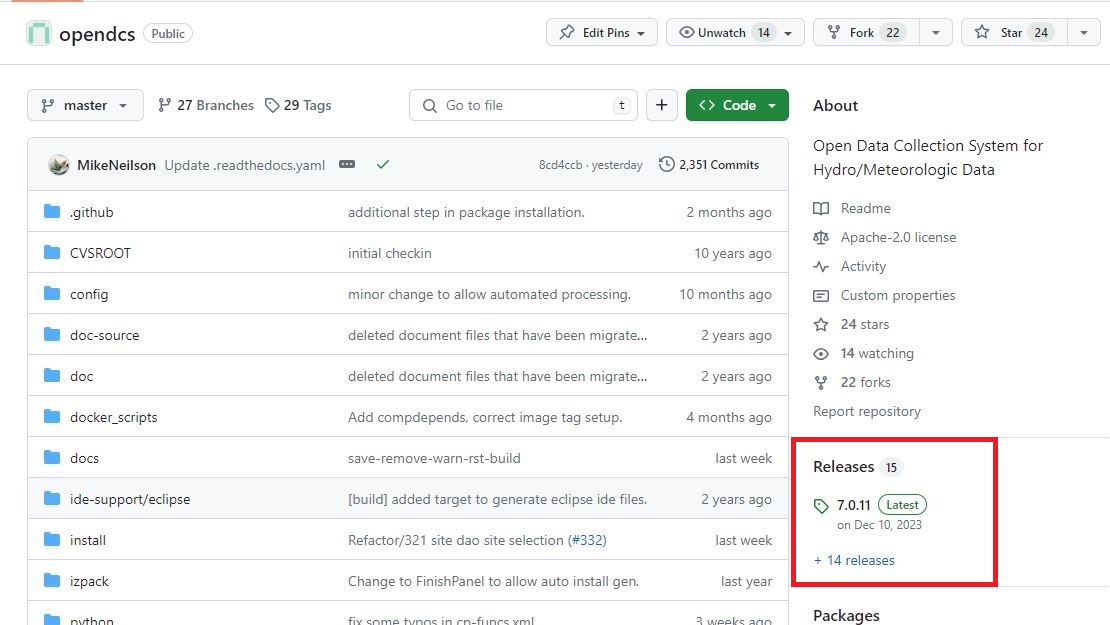
The latest version releases of OpenDCS can be found online: https://github.com/opendcs/opendcs. From the main github site click on the header “Releases” in the image below.
Alternatively the following link goes straight to the releasese page: https://github.com/opendcs/opendcs/releases For each release, there is a drop down menu “Assets”, and in that section download the (opendcs-installer-#.#.#.jar).
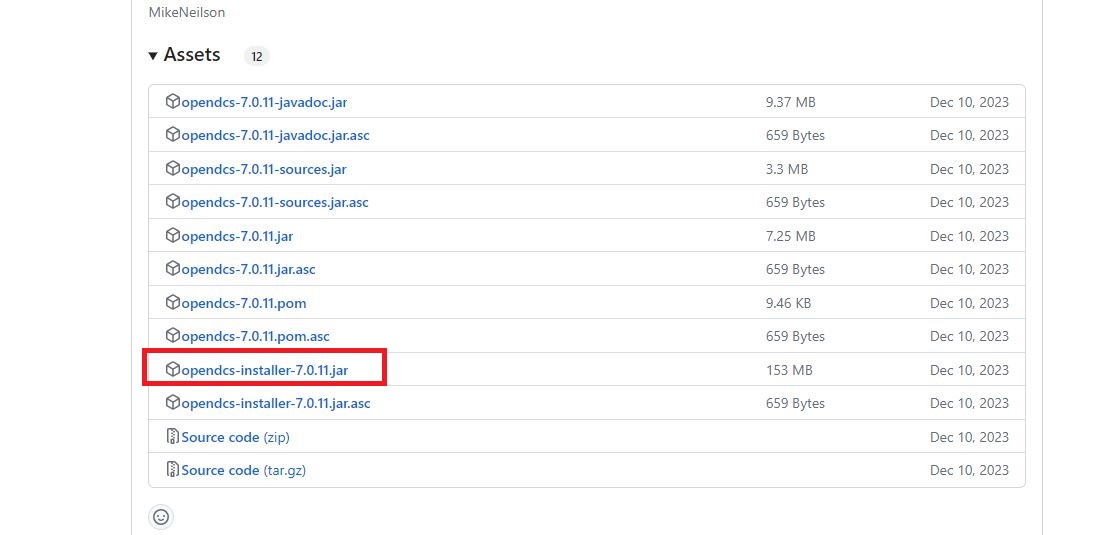
Once the jar file is downloaded. Install it by launching it (double clicking).
How do I install the jar?
Prior to double clicking or launching the install jar, decide where you want to install the program. The default location will be “C:\OPENDCS”. If you already have a previous version installed in this location, back it up per your own standards.
Ensure that your desired installation path exists. Ie if you wish to use the default installation path, create an empty folder C:\OPENDCS.
Double click the opendcs-installer-#.#.#.jar to begin the installation.
The first window to pop-up will be a welcome note. Click next.
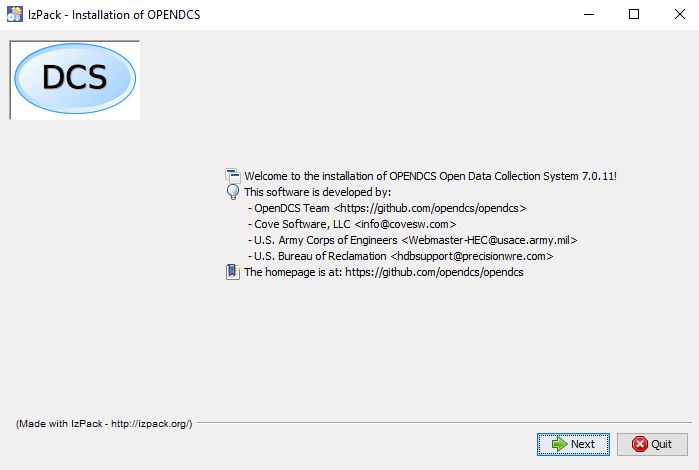
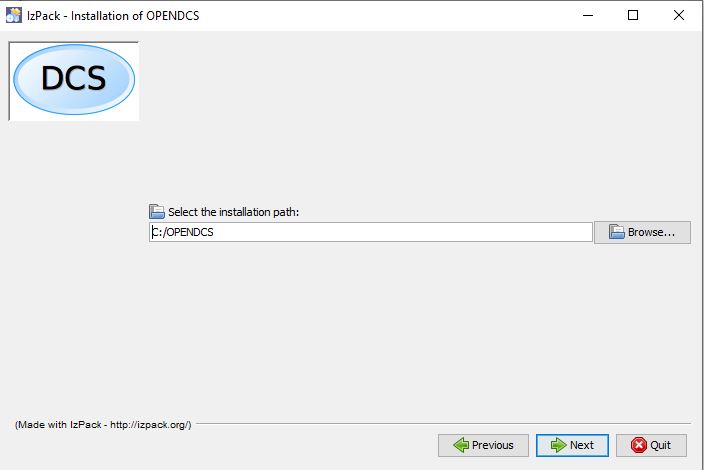
The next window will prompt a user to define an installation path. If you wish to use the default location (C:\OPENDCS) click “Next” (so long as the location exists). Or select the the location. Then click “Next”. You may get a warning “The directory already exists! Are you sure you want to install here and possibly overwrite existing files?”. Click “Yes”.
Next, a window will pop up prompting the user to check which packs should be included in the install.
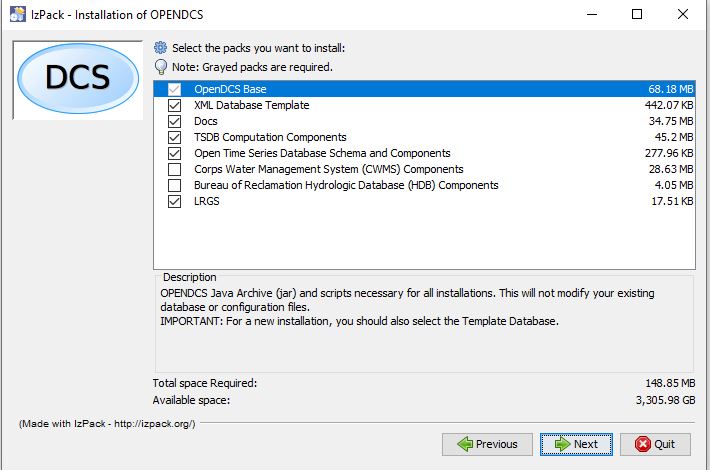
The following packs should be checked for each respective agency:
USACE
OpenDCSBase
XML Database Template
Docs
TSBD Computation Components
Corps Water Management Systems (CWMS) Components
LRGS
USBR
OpenDCSBase
XML Database Template
Docs
TSBD Computation Components
Bureau of Reclamation Hydrologic Database (HDB) Components
LRGS
Other Agency
OpenDCSBase
XML Database Template
Docs
TSBD Computation Components
Open Time Series Database Schema and Components
LRGS
Click “Next”. Then the installation will begin. Once “Finished” shows up in the window, then click “Next”.
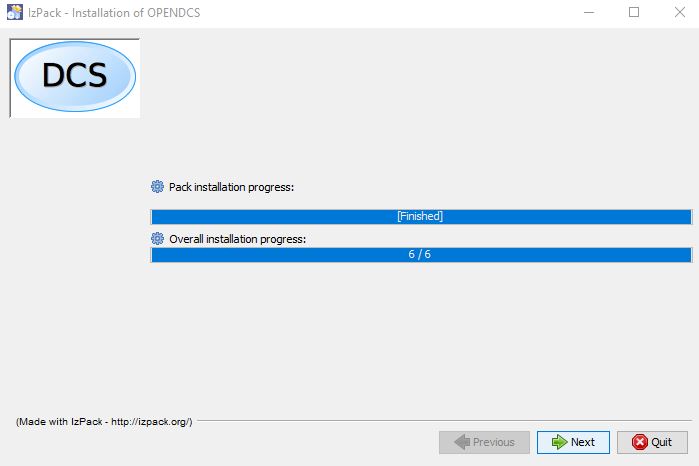
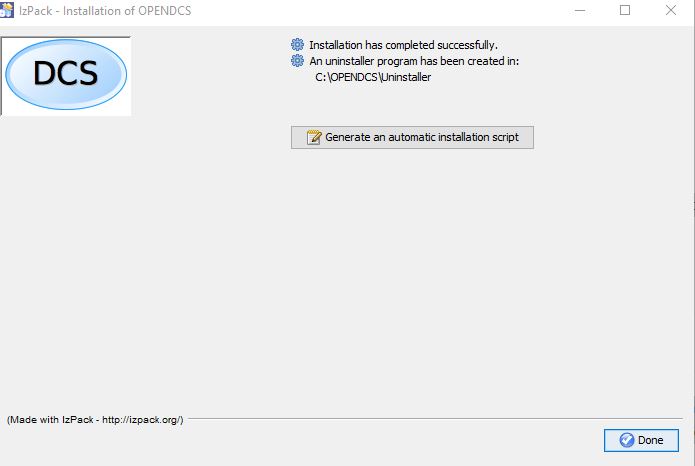
The next window relates to shortcut set-up and preferences. Select your preferences and click “Next”. The final window shown below will include a button “Done”. Click “Done” and the installation is completed.
Navigate to the install directory to view the contents that just installed. Make note that the folder “doc” contains a folder “html” where documentation can be accessed. Open the index.html (ie drag the file into a browser).
What do I need to edit/configure for my set-up?
OpenDCS on the first start of any program will determine if you have an existing DCSTOOL_USERDIR environment variable set or Create the default directory for you.
If you have not set the variable OpenDCS will use it’s default $HOME/.opendcs on unix type machines and %AppData%.opendcs on Windows machines.
If that directory already exists, it is assumed valid. If it does not exist OpenDCS will copy the default decodes.properties to $DCSTOOL_USERDIRuser.properties and also copy the default XML database to $DCSTOOL_USERDIR/edit-db.
This allows new users to get started more quickly. Additionally if you are setting up a fresh SQL based database, the contents of $DCSTOOL_USERDIR/edit-db should be imported in, starting with the loading-app directory.
Note
We are currently in the process of improving how this required standard data is handled. We’ve provided this basic instruction to help users get started but would preferred not to write out detail documentation since we’ll be changing it soon. If you have further questions please use https://github.com/opendcs/opendcs/discussions for more clarity.
USACE and USBR users:
Copy the user.properties file from server to the $DCSTOOL_USERDIR directory.
Should should only have to do this once or if the contents change.
IF you will be connecting to multiple systems (such as a backup system) we suggest renaming to <Meaning to you name>.profile
For more details about the decodes.properties see Starting and Configuring OPENDCS
How do I launch the software?
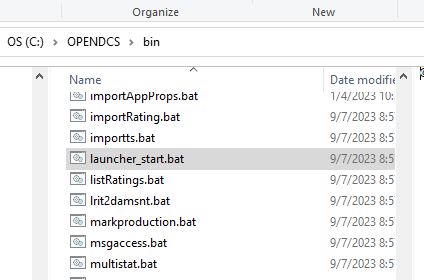
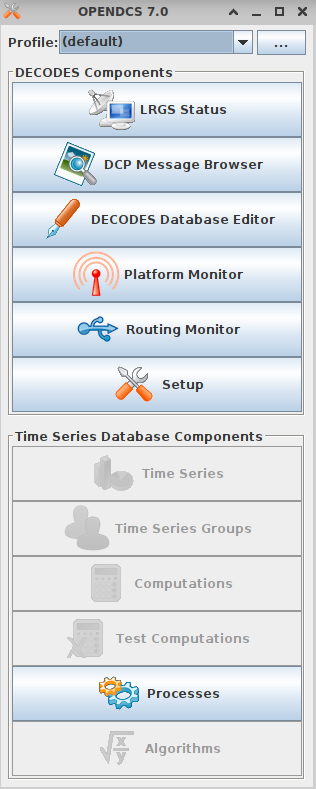
Now that the software is installed. On windows double click: launcher_start.bat (in the C:\OPENDCSbin directory).
And the following menu will pop up, when installed successfully:
Double click on a section, such as the DECODES Database Editor and a Database Login should pop up prompting the user for credentials.
USACE users:
USERNAME: Oracle User
PASSWORD: Oracle Password
OpenDCS Main Menu Components - Overview
The OpenDCS main menu is divided into two parts outlined below.
Profiles
The Profile system of OpenDCS is now always on. The default profile is $DCSTOOL_USERDIRuser.properties unless you’ve called launcher_start -P <some property file> from the command line.
Profiles are normal decodes.properties files that use the .profile extension. The File name, without extension, is used as the profile name. This system allows users to connect to multiple OpenDCS database instances when their work requires it.
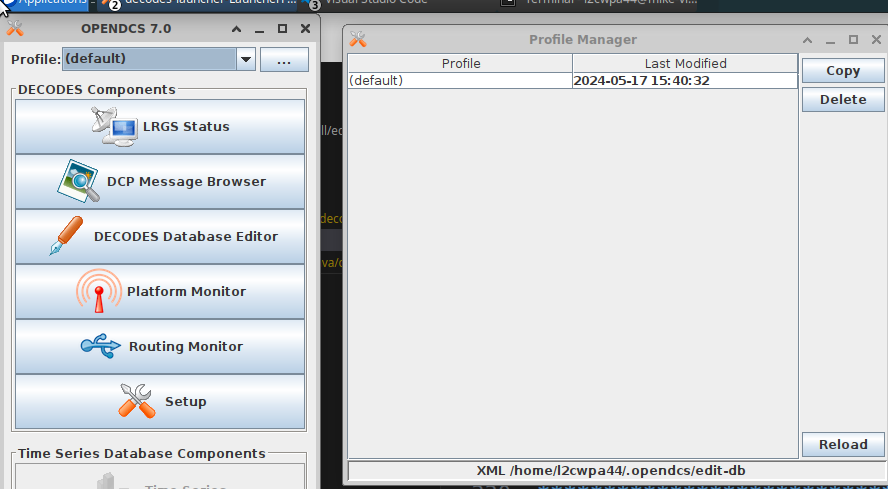
The management button, the …, allows to to see existing Profiles and create new ones. After copying an existing profile, you can select it in the ComboBox and click setup to edit the contents of that particular profile. Applications launched will use the selected profile.
When the default profile is selected, applications are launched in the same JVM as the launcher. When a non-default profile is selected the launcher will create a new JVM to run the applications.
Note
This System has existed in OpenDCS for a while, we’ve now decided to make it visible by default.
DECODES Components
The top part of the menu consists of the DECODES Components
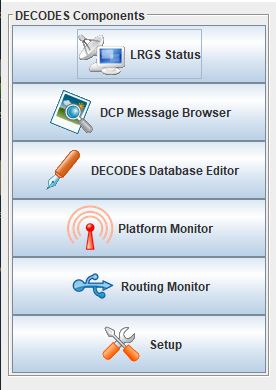
LRGS Status
LRGS stands for Local Readout Ground Station. This button launches the LRGS Real-Time Status and Configuration GUI. This tool is for monitoring all the data received from all sources the LRGS connects to. It also shows the status of all clients connected to the LRGS that are retrieving data from it.
The GUI has a menu at the upper left that allows users to configure client user accounts and configure the various data sources the LRGS retreives data from (e.g. DRGS, HRIT, Network DCP, NOAAPORT, etc.).
The Real Time Status grid shows the number of messages received each hour with an error ration where applicable (e.g., 5000/15 means 5000 good messages received and 15 bad ones detected).
DCP Message Browser
The DCP Message Browser is a tool for retrieving and/or reviewing raw DCP messages. Users can connect to various servers and set display formats. This tool is useful for reviewing raw DCP messages, especially when bad messages are detected. This tool is also useful for retrieving older messages beyond the look back window of active routing specs.
DECODES Database Editor
The DECODES Database Editor is where users can set up routing specs. The GUI has multiple tabs including, but not limited to the following:
Platforms:
This tab is where users can add (or remove) DCP platforms that they may wish to retrieve data from. Typical information specified in this section includes the Platform Sensor information (ie parameters or type of data transmitted) and Transport Media information (ie DCP address and GOES channel parameters).
Configs:
This tab is where various configurations can be defined. For example, more information about the mapping between the DCP sensor information and time series information is defined. For USACE, this means that more information matching the parameters defined in the Platform section to CWMS database parameter parts (such as sampling interval and duration, etc).
This section is where DECODING information is added. DECODING comprises of statements rooted in FORTRAN that will translate a variety of recording devices (ie raw DCP messages, web scrapping, etc.), into standard engineering units and forms, such as human readable time series data.
Sources:
This section is where data sources are defined. Source types include:
lrgs
hotbackupgroup
socketstream
file
directory
web
abstractweb
roundrobingroup
Routing:
This section is where routing specifications are defined. Routing specs require at a bare minimum, the following bits of information:
Source
Platform
Destination
Name
Platform Monitor
This is a tool that can assist users in monitoring the status of data being retrieved, decoded, and data quality in the database.
Routing Monitor
This is a tool that users can use to monitor routing spec running on the scheduler.
Setup
This section where users can edit default properties (decodes.properties). For example - the following are potential edits users may modify.
Default Data Source
Time Zone preferences (default is UTC)
Screening Unit System
For more information about the Preferences and options, see Starting and Configuring OPENDCS
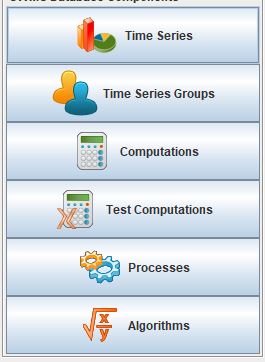
Time Series Database Components
Time Series
This is one method to view the time series in the database. Time Series can be filtered by pathname parts, or Descriptions, or Database Keys. This is one method to identify the Key for a given time series in the database.
Additional information can be retrieved about each time series such as number of values, the min and max values, and period of record.
Time Series Groups
This is a tool for creating groups that are comprised of various time series. These groups can be used in calculations such that individual calculations are not set up for each individual time series.
Typically, time series are grouped by data type, basin, region or site-group.
Computations
This is the GUI to
Access, edit, or add new algorithms;
Set up computations for time series in the database and;
Set up Processes.
Test Computations
This is a tool for testing out computations. Computations can also be tested within the Computations GUI.
Processes
Created processes is a way to group computations together, to help speed up run time operationally, and for backfilling data. By grouping computations together users can better organize computations and keep track of dependencies.
Algorithms
This tab takes users to the Algorithm Wizard.
Logging
All of the applications write to a log. The default name is the internal name of the application or “gui.log” for the GUI application. The file on disk can be controlled in each application with the -l filename.ext command line switch if run from a terminal.
The logging system has recently (7.0.13, which is not released) be updated to make use of newer, standard, technologies and exposes more information from the 3rd party libraries we use to ease development.
If something is overwhelming your logs, create a file named logfilter.txt in the directory $DCSTOOL_USERDIR, that will be picked up and used to filter out messages that aren’t needed or wanted. For example most CWMS users will want to have a file of at least the following:
org.jooq
As not filtering that out can cause excessive messages in the log.
Note
This mechanism is intentionally limited. It is a goal of the project to switch the current custom logging backend to an available standard, such as logback or just java.util.logging which will provide the end-user with better options for log filtering and storage.
The mechanism only checks that a given “logger” starts with the text of the given line. No other matching is done.